Tag Archives: kde

Fighting against Qt designer grid layout

Software

The work for KDE4 HIG is on te way and let’s see if KDE4 it’s gonna be the most useable environment out there.

Some days ago I’ve read on el’s blog about her work on the guidelines around the configuration dialogs. At the moment the work is around tweaking prototypes made on Qt designer, as you can see in this example, this is a quite complex dialog and the main difference between this type of dialog and the current kde ones is that the layout is centered, the labels are right aligned and the main widgets are exactly aligned and have the same width, giving the dialog a lot less cluttered aspect and seems simpler, even if it has the same number of widgets than a traditional dialog.

The main problem of doing a layout like this is convincing Qt designer to align the widgets as you have in mind and not being too smart…

For the few times I had to use Qt designer, I’ve come with a love/hate relationship with it. Love because it’s one of the most powerful tools for creating a GUIs around here, for example, I still remember with horror how impossible it was to create a decent looking layout with Delphi (an ancient version when I was still trying to use it, looong ago :D). Hate because sometimes it really tries being way too smarter than the user, and especially when using the grid layout it puts the widgets in the most improbable places, and the impulse of beginning to edit the ui file with a text editor becomes so strong :-P.

In this article I will point out some veeery empirical guidelines on how to design a form without getting mad. It will be based mainly on the this dialog used in el’s blog entry, both because i’t a quite complex example and because I’m not expert in usability, so all the tips will be on how to make it in the easier way than in the most useable way and oh, also because of lazyness 🙂

The grid layout

Qt has that neat feature of the grid layout and is the type you probably want to use for almost every dialog more complicate than a simple pile of widgets, but unfortunately is one of the most difficult to work with, being essentially a table and if you have worked a little bit with html or word processors you know that they tend to be wery tricky to work with :-).

So let’s see how a grid layout is done in the Designer’s ui XML files (that has a very straightforward translation in the generated c++) let’s start with this very stupid dialog:
4 buttons

And the source code of the interesting part is:

  <layout class="QGridLayout" >
   <property name="margin" >
    <number>9</number>
   </property>
   <property name="spacing" >
    <number>6</number>
   </property>
   <item row="1" column="1" >
    <widget class="QPushButton" name="pushButton_4" >
     <property name="text" >
      <string>PushButton</string>
     </property>
    </widget>
   </item>
   <item row="1" column="0" >
    <widget class="QPushButton" name="pushButton_3" >
     <property name="text" >
      <string>PushButton</string>
     </property>
    </widget>
   </item>
   <item row="0" column="1" >
    <widget class="QPushButton" name="pushButton_2" >
     <property name="text" >
      <string>PushButton</string>
     </property>
    </widget>
   </item>
   <item row="0" column="0" >
    <widget class="QPushButton" name="pushButton" >
     <property name="text" >
      <string>PushButton</string>
     </property>
    </widget>
   </item>
  </layout>

As you can see every item of the layout has the row/column coordinates that determines how the table is done; a quite different method from for example HTML.

But there is one part that is very similar to HTML and that is responsible for most problems. The following dialog has only three buttons, but the right one is in the middle.
3 buttons
The source code is:

 <layout class="QGridLayout" >
   <property name="margin" >
    <number>9</number>
   </property>
   <property name="spacing" >
    <number>6</number>
   </property>
   <item rowspan="2" row="0" column="1" >
    <widget class="QPushButton" name="pushButton_2" >
     <property name="text" >
      <string>PushButton</string>
     </property>
    </widget>
   </item>
   <item row="0" column="0" >
    <widget class="QPushButton" name="pushButton" >
     <property name="text" >
      <string>PushButton</string>
     </property>
    </widget>
   </item>
   <item row="1" column="0" >
    <widget class="QPushButton" name="pushButton_3" >
     <property name="text" >
      <string>PushButton</string>
     </property>
    </widget>
   </item>
  </layout>

the property rowspan=”2″ tells the right cell to expand in two rows.
In the same way the property colspan expand the cell of the given columns.

This is a very powerful property that lets you draw very complex layouts, but usually you can’t force Designer to use it where you want, it always guess from the layout you have drawn, so you always must very precise; for example in this particularly bad drawn form wrong layout in theory you could expect a result like that right layout but if you click on the grid layout button you get that monstruosoty: wronger layout that correspond to this table: wronger layout table As you can see there are three empty cells (the bottom two resulted from the wrong vertical alignment of the right spacer) and a text label with rowspan=2 where it shouldn’t be.

This is a simple example, but in more complex dialogs this phenomenon could be very subtle and hard to spot.

Constructing a dialog

Let’s start with the bare dialog of the above example and we will progressively populate it with more widgets.

First of all, when you place the widgets, you must be very precise, in order to avoid the above problem. You should give to the dialog the very same aspect that you plan for the final one; usually the Qt tutorials emphasize that you don’t have to be very precise and will be designer that line up the layout, but thrust me, you have 🙂
In this example, the left and right spacers must be exactly aligned with the label and the textbox, in order to avoid unneeded empty cells and the labels should be aligned well with the corresponfig text boxes.

Hint: for the most delicate parts (here the two spacers and the textbox) you can make an horizontal layout and then break it, only for obtaining the components placed well.

When you ‘re done you will obtain the structure of the following table:
right layout table
I always find a great help thinking about what structure of table, and what rowspan/colspan are needed in order to achieve a particular result (I know: HTML wreaks mind :D).

Adding things that breaks the flow

You may have guessed that the hard part of this article is making all the layout always centered and keeping the ideal line between the text labels and the line edits (or other kinds of widgets) continuous. So what happens when we introduce some titles that are aligned to the left that makes impossible to still use only two spacers, like this image?
grid with titles

You have to consider the layout broken in different logic “blocks” separed by the item that is not centered (in our case that bold labels), and then use one and only one spacer for every separate “block”.

Adding complex groups of widgets instead of a bare line edit

In this step we end up with this dialog:
almost complete
Nothing particular here, in order to avoid to render the main table too complex and avoiding ugly surprises, I suggest to grup the groups of widgets with an horizontal layout.

If there are widgets without label could be helpful to put a vertical spacer instead of the text label just to make sure that designer understand that cell should be void; it’s not necessary, but if you modify the layout designer could screw things up.

Adding multiline grids in the layout

Sometimes you have two or more lines containing more widgets that are almost identical and should be aligned in a grid, otherwise they would look very bad. In this case you will end up with a multiline block that will have a rowspan of 2 (or how many lines you will need) with the text labels (as many as the rowspan) aligned on the left of the group.

If you want a layout like this ugly grid I would say that a grid too big should be avoided (as usual, this is not a tip about usability, but only about what is simpler to do). The ugly thing is that you have no way to align items in a grid if there is a title in the middle that breaks the layout.
The only way is to align them into the main grid, but you can use this trick only one time, because another grid of different items would break down everything.

And there it is the final result, with the sources 🙂 complete

Polyester 1.0 beta2: "if it fails, try again"

Graphics

Released today a second beta for Polyester 1.0 that fixes some important issues.
Changelog:
widget:
-Nicer animation on buttons when the mouse cursor leaves them
-Shadowed text of buttons and menubar configurable separately
-Fixed a bug in the rendering of scrollbar handles
-Don’t render dots on scrollbar handle when the handle is too little
-Optimization: lot useless loops in the animation code (i.e. deactivating the QTimer when is not needed :))

deco:
-More Fitts’ law friendly: titlebar buttons works also when the mouse cursor is at the top edge of the screen
-No longer draws the round border if the window is maximized
-Uses 16×16 icons in titlebar where available instead of scaling down bigger icons

Polyester 1.0_beta2 is asking you: “pleeaase, download meee!

Tasty Menu 0.6: "look ma, no crashes!"release

Software

Or at least I wish I could say that 😛
By the way, now it should be a little bit more stable.

The obligatory changelog:
-command to clear the recently installed applications list
-Application categories cand be made collapsable and appear collapsed by default
-left mouse button menu on menuitems that lets to add/remove bookmarks and edit the proper submenu with kmenuedit
-the add bookmark icons should work better
-Fixed a bug that prevented svg-only icon themes to display correctly
-Added a very basic Strigi integration
-When resizing the menu in window mode the size of the three columns are updated correcly
-Fixed a crash when a no longer existent app is in more used / recently used list
-Fixed another probable cause of crash

And the even more obligatory download link 🙂

Polyseter "It’s almost there" release

Graphics

After neglecting it for a little bit to work on Tasty Menu (my poor brain still has some difficulties to do multitasking :D), today I’ve released Polyester 1.0Beta1, with some bugfixes as well as some cosmetic changes celebrating the approaching of 1.0, that will be the last Qt3/Kde3 version. After that I will begin the painful journey to port it to qt4/kde4, that I hope will offer enough nice capabilities to implement some ideas that was still not feasible with qt3.
You can download it here.
Changelog for Polyester 1.0Beta1:
widget:
-Corrected a bug in the rendering of checked menubar items
-Added a cute animation to the default botton text that makes it always readable
-Rounded focus rectangle where it’s possible
-Corrected a bug that made displaying the menubar in Opera browser with incorrect colors
-Configuration option to disable the coloring of the sorted header in listviews
-Less dots in scrollbar slider
-More contrast in button borders
-Some changes under the hood that make some elements like headers, scrollbars and tabbars to look a little bit more clean
-Corrected a little bug in the animation of toolbar buttons

deco:
-Titlebar button icons have a sharper shape
-More smooth buttons animations
-Button animations styles “colorize” and “fade out” should work better regardless what the buttons color is.

Another Tasty Menu update

Software

Updated today with a bunch of enhancements:
0.5:
-(Hopefully) fixed some other crashes
-the big tooltip is enabled only when also the other kicker’s big tooltip are enabled too
-the menu can be made a normal window (the upper right arrow toolbutton)
-the highlighted item in the middle column is always the currently open category
-busy mouse cursor when searching
-corrected a bug that prevented to use the left column after a search in ceratin cases
-added a “Configure global shortcuts…” command in the LMB menu
-user button and “switch user” buttons merged in one button
-added a “Run program…” button
-open submenus on timeout also when the mouse button is not pressed, so now when the mouse button is down the delay is 250ms when is not pressed 1 sec
-clear button on the right: it is dramatically nicer looking now 🙂

Download it when is still hot 🙂

Tasty Menu 0.4

Software

Yes, Tasty Menu crashes more than Windows 95 🙂
In this release I hope to have fixed many of the crashes that occured, but of course I fear many bugs still remains.
So the two major highlights are a less frustrating and more stable experience ™ and the notification of recently installed applications that I was talking about here in the last post.
As usual, you can download it here.

New feature of Tasty Manu

Software

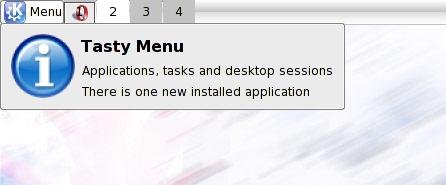
The common complaint about every desktop (with every=(Gnome||KDE)) is that it’s difficult to spot where the recent installed applications, maybe now it’s finally over: Tasty Menu will notificate into its tooltip how many application have been installed and the menu will highlight the categories where the icons of the new aplications are. It’s still not perfect, unstable and heavy, but it’s starting working.

Tasty Menu notifications

So when someboy else complains about this, he will be punished with 5 uninterrupted hours of Magical Trevor 🙂

Tasty Menu 0.3

Software

Again another release of Tasty Menu.
It is slowly getting shape, my TODO list is shrinking more and more.
Summarizing a rough changelog:
0.3:
-Keyboard navigation
-Right-most list doesn’t open groups on mouse over
-More evident focus on lists
-Added a left mouse button menu
-Menu size configurable
-A more clear highlight of the currently opened submenu
-Simple integration with Kerry Beagle
-Added a big tooltip like other kicker applets (no it isn’t the cool tooltip of kicker, because at the moment it isn’t usable by 3rd party applets unless big and ugly code duplication)
-It’s possible to override the global shortcut Alt+F1 to make it open Tasty Menu instead of KMenu (default disabled)
-Uses KconfigXT
-The menu button text label can be disabled

Of course you can download it from here

Tasty Menu 0.2

Software

Uploaded Tasty Menu 0.2: this version has a more usable and a little bit less unfinished aspect, the most prominents highlights are:
-Fixed some crashes at exit of kicker
-Now the behaviour it’s similar to the one of a normal popup menu so it’s now possible to launch an application with one single mouse click
-Configurable size of icons
-Listviews with a more compact look in order to waste less space
-Kicker button it’s a little bit less wide
-Kicker button icon grows with kicker
-Some informative tooltips
-Reverse Layout support restored again
-Beginning of an help page
Available here.

Tasty Menu: what do you wanna eat today?

Software

screenshot
Today I just released for the joy of everybody a first very dirty work in progress of my new pet Tasty Menu, if you dare, you cat download it here, but of course don’t complain if your kicker becomes a great ball of fire :-).

And now some introductory blah blah on it.
I found unconfortable the current KMenu due to the plethora of menu entries and started to think about how that menu should be…
looking around the various approaches I tried to take here and there the saner ideas of the various menus around there.
The Windows xp menu is hated by almost everyone I know, Yeah, I know it isn’t very objective, but it’s the impression I have. I think the reason is that the prominent icons on the left are the automatically generated most used apps list, that is out of the user’s control and the second reason the list of all programs is very hidden on a submenu.
The menu in the new Novell desktop is very similar, but I think it should be a little bit better, because if I understood correctly the default list on the most prominent place is a list of the favourite apps that is the user to decide.
the list of all the available apps it’s on a separate window, that renders the process of searching for an app much slower, but at some extents easier, because a big window makes the categorizing more clear and the icons looks a little bit less cluttered. A similar thing applies to OSX, where the apps are browsed through the file manager. Similar thing applies to Gimmie(http://beatnik.infogami.com/Gimmie) where the launcher of “objects” is a window. Speaking of Gimmie is very interesting how they have integrated also other infos (Documents, contacts and other stuffs) in the same app.
A strange thing about the default Gnome menus: at a first glance separing apps and other actions like logout seems cute, but they seems to fail in real world where new users seems confused by the two/three menus instead of one (I have also failed on it: the first time i tried Gnome 2.x I always opened the wrong menu in order to find the logout button :-P) I think it will definitely need more testing.

So I started hacking around this little applet in the hope of finding something valid, that i surely don’t pretend to be perfect, but at least to be a testbed where new concepts could be rougly drawn.
The left part of the menu is very similar to the Novell idea: you have a search box that is always selected when the menu is opened (the search result are displayed in the leftmost listview), followed by a combobox that decides what the following listview: favourite applications (default), most used applications, recently used applications and recent documents.

The right part contains the whole kmenu and takes the aspect from KBFX, the middle column contains the top level categorization (plus in the current kmenu arrangment there are also the control center, home folder and find files, but i think there should be present only categories). in the left-most listview there is the content of the category currently selected in the middle column. I think in this way even if it has the same number of items it _appears_ less huge than with a popup menu/submenu structure.
every items have two row, for the name and for the description, in order to make a more it more informative. On each selected item appears an action icon on the right, at the moment they are “add bookmark” on application icons and “remove bookmark” on favourite apps list.

The bottom buttons are the usual switch user, lock session and logout. In a first time I didn’t want to put them, I tought that these function should be delegate to another applet like that session applet , but as I said, it seems that the multiple menus concept it’s a thing that doesn’t work very well in practice.

The left-most btton contains the user name and icon, and clicking on it it opens the kcm used to edit the user’s profile. I know it seems silly, but I read on some usability report somewhere that in the tests with the XP start menu when asked to edit their profiles many users clicked on the user icon in the menu and were disappointed that nothing happened. Maybe I should integrate that button with the Switch user one.

At the moment there is still an huge room for improvement, it’s still not very stable and it still lacke some important features thet I still hadn’t figured out how to implement them, in particular:
-a global shortcut and keyboard navigation,
-tooltips to truncated menu entries and actions,
-the ability to launch an app with only one mouse click like the normal menu items,
-the ability to make it a normal window,
-drag ‘n drop support in the management of favourite apps,
-and of course making it more friendly with smaller screen resolutions, at the moment is really huge 🙂 (that is not necessary a bad thing)